Announcement
How to Create Viator Special Offers in LinkTwist (Step-by-Step)

Strike-through prices. A bold discount badge. A “limited time” label that makes travelers book now instead of later. That’s what a Viator Special Offer does for your listing. If your products are connected to Viator with Pricing Sync, you can now launch one straight from LinkTwist in a couple of minutes, without leaving your admin.
Quick answer: To create a Viator Special Offer in LinkTwist, open your product option, go to Pricing → Rules, click Add Rule and set the channel to Viator. Include the Adult participant type, set offer dates that start today and last 30 days or less, and enter a negative price adjustment of more than 5%. Then save. LinkTwist sends the discount to Viator as a Connected Special Offer, and Viator promotes it if it meets its eligibility rules.
At a glance
- Where: Products → Option → Pricing → Rules → Add Rule, with Channel set to Viator
- Who it’s for: LinkTwist suppliers whose Viator products use Pricing Sync
- Offer length: 1 to 30 days, starting on the day you create it
- Minimum discount: more than 5% below the lowest price advertised on Viator in the last 30 days
- Must include: the Adult price
- Yearly cap: 180 Special Offer days per product
- Setup time: about 2 minutes
What is a Viator Connected Special Offer?
A Connected Special Offer is a Viator Special Offer that you create in your booking software instead of in Viator. When Pricing Sync is turned on, Viator takes all your prices from LinkTwist. That’s why Viator’s own “Add a special offer” button is disabled for those products: LinkTwist is now where your prices are managed.
So you create the offer in LinkTwist. We send Viator the discounted price along with the offer details: start date, end date, discount and participant types. Viator checks it against its marketplace rules, and if everything is in order, your listing gets Special Offer merchandising right away.
Why bother? Special Offers are one of the strongest conversion tools on Viator. Creating them from LinkTwist means one place for all your pricing, discounts set per option, participant type and channel, and no need to switch Pricing Sync off and on again just to run a promotion.
Before you start: checklist
- ✅ The product is connected to Viator through LinkTwist, with Pricing Sync turned on
- ✅ The product has at least 30 days of pricing history on Viator (brand-new products can’t use this yet)
- ✅ No other Special Offer has been sent to Viator for this product for the same period
- ✅ Your new discount is deeper than any discount you ran in the last 30 days
How to create a Viator Special Offer in LinkTwist (step by step)
Special Offers are set per product option, using Pricing Rules. There are eight steps, and most take only a few seconds.
Step 1: Open the option’s pricing rules
Go to Products → Products List and open your product. In the Options tab, open the option you want to discount, then go to Pricing → Rules.
Step 2: Add a rule and set the channel to Viator
Click Add Rule (or Create First Rule if the option has no rules yet). Under Rule Scope, set Channel to Viator. The form changes: the dates become Offer Active Dates, and a Viator Special Offer panel appears that checks your offer as you build it.
Step 3: Choose who gets the discount
In Participant Types, select Adult. It’s required. Adding Child, Infant and other participant types is optional, but Viator encourages it, and travelers like it too.
Step 4: Set the offer dates
Fill in Offer active from and Offer active until.
- Start today. Viator only accepts offers whose start date is the day it first receives them.
- Keep it to 30 days or less. LinkTwist shows how many days you’ve used, for example “30 of 30 days”.
- These are booking days. They’re the days travelers can book at the offer price, not the dates of the activity.
Step 5: Leave the vacancy threshold as it is
LinkTwist and GetYourGuide support vacancy-based pricing, which is great for last-minute deals. Viator doesn’t. For a Viator Special Offer, the vacancy range always stays at its maximum (your full capacity), so the same discount applies however many spots are left. Leave this section as it is.
Step 6: Set your discount
In Price Adjustment, enter a negative value. Use the toggle to choose a percentage (for example -10%) or a fixed amount (for example -5 €). The quick buttons change the value in steps of 10.
Tip: make it a real deal. It has to be more than 5% below Viator’s reference price, which may be lower than your current price. Here’s why.
Step 7: Check the Viator Special Offer panel
Before saving, look for “Viator will promote this offer” and three green checks:
- the offer runs for 30 days or less
- the discount is at least 5%
- the Adult price is included
If a general rule (Default channel) also covers some of the same dates, the panel lets you know. You don’t need to fix anything: the Viator rule always wins on Viator for the dates it covers.
Step 8: Save and go live
Click Save Rule, then Save Changes. Your offer is sent to Viator on the next sync.
How to check if your offer is live
In LinkTwist
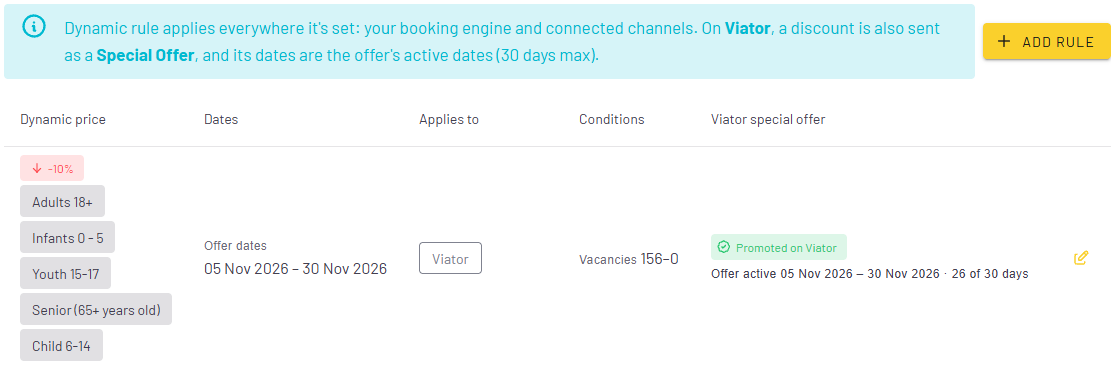
The Viator special offer column in your rules list shows the status of each rule:
- Promoted on Viator: every detail LinkTwist can check is valid (dates, duration, discount, Adult price), and the rule is sent to Viator as a Special Offer. Viator still makes the final call based on your pricing history, so confirm the result in Viator.
- Offer, not promoted: the discount still applies on Viator, but without Special Offer merchandising. This usually means the rule runs for more than 30 days.
In Viator
Viator makes the final decision, and it doesn’t send it back through the API yet. Open your product in Viator’s Supplier Management Center and go to Schedules & prices. If your new price isn’t showing, click Refresh in the Connectivity section to trigger a full sync.
- Active: you’re live! The banner reads “You have an active special offer” and shows the offer dates and discount. Because the offer is managed in LinkTwist, any changes have to be made there.
- Discounted Price Active (Ineligible): your discounted price is on Viator, but without Special Offer merchandising. The banner tells you why. See troubleshooting below.

What travelers see
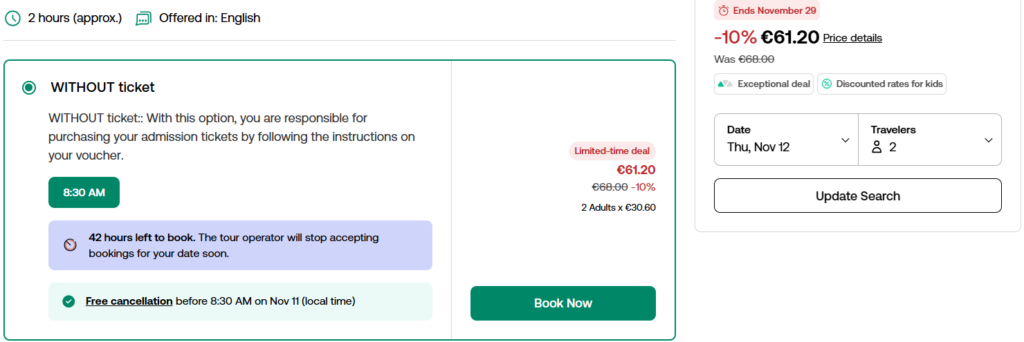
Once the offer is active, travelers see it right on your listing: a “Limited-time deal” label, the original price crossed out next to the new one (for example €68.00 €61.20, -10%), an “Ends [date]” countdown and badges such as “Exceptional deal”. Click “Check availability” for a date within the offer to see it yourself.
Viator Special Offer eligibility rules
Connected Special Offers follow exactly the same rules as Special Offers created manually in Viator. The rules exist to comply with consumer protection laws, so every saving travelers see is genuine.
| Rule | What it means |
|---|---|
| Minimum discount | More than 5% below the lowest price advertised on Viator in the last 30 days |
| Duration | 1 to 30 consecutive days (booking days, not travel days) |
| Start date | The day Viator first receives the offer |
| Annual limit | Up to 180 Special Offer days per product per calendar year |
| Participant types | The Adult price must be included |
| Pricing history | At least 30 days on Viator |
| Overlap | Only one active Special Offer per product at a time |
| Price changes | Changing an option’s base price during an offer ends the offer |
Why isn’t my Viator Special Offer promoted?
The discount isn’t big enough
This is the most common reason. Viator compares your offer with the lowest price advertised in the last 30 days, and that includes earlier discounts, even ones that were never promoted. For example, if you ran a 10% discount two weeks ago, a new 10% offer doesn’t count as a real saving. Either make the new discount deeper, or set prices back to normal and wait 30 days.
The dates are wrong
The offer needs both a start and an end date. It must start today and can’t run for more than 30 days.
The product already has an offer
An earlier rule, including one that applies to all channels, may already have been sent to Viator for the same period. Edit or remove that rule, then create the new one.
A rule for all channels is longer than 30 days
Rules on the Default channel apply everywhere, including Viator. If one of them runs for more than 30 days, Viator still receives the discounted price but doesn’t promote it. For a promoted offer, create a separate rule with Channel: Viator. The Viator rule always wins on Viator for the dates it covers, so the general rule doesn’t need to change.
The base price changed during the offer
Editing an option’s base price while an offer is running ends the offer. Plan price changes for before or after the offer period.
FAQ: Viator Special Offers with LinkTwist
Can I create Viator Special Offers if I use Pricing Sync?
Yes. With Pricing Sync turned on, you create the offer in LinkTwist under Pricing → Rules, with the channel set to Viator. Viator’s manual “Add a special offer” option is disabled for products that use Pricing Sync.
Will the discount also apply to my booking engine and other channels?
Not if the rule’s channel is set to Viator. Viator-only rules change prices on Viator only. Rules on the Default channel apply everywhere.
Can I see Viator’s final offer status in LinkTwist?
Partly. The Promoted on Viator status means every detail LinkTwist can check is already valid. But Viator doesn’t currently return its final decision through the API, and it depends on pricing history that only Viator can see. Always confirm the result in Viator’s Supplier Management Center.
What happens if a general rule and a Viator rule cover the same dates?
The Viator rule always wins on Viator. The general rule keeps applying to your booking engine and other channels, and to any Viator dates that aren’t covered by a Viator rule.
Can I use vacancy-based pricing for a Viator Special Offer?
No. Viator doesn’t support vacancy thresholds the way LinkTwist and GetYourGuide do, so for Viator Special Offers the vacancy range always stays at its maximum. Your discount applies however many spots are left.
Can I run several Viator Special Offers in a row?
Yes, as long as only one is active at a time. Every price from the last 30 days counts toward the “lowest recent price”, so in practice there’s a 30-day break between offers, unless the new discount is more than 5% below that lowest price.
How do I find my product’s lowest price from the last 30 days?
Check the pricing changes you’ve made to the product, its options, time slots and participant types in the last 30 days. If you’re not sure, Viator Supplier Support can look up your product’s pricing history for you.
Can I create a Special Offer for a brand-new product?
Not through the API yet, because a new product has no pricing history. Instead, turn off Pricing Sync for that product in Viator for a while and create an Intro Special Offer manually there. Availability and bookings keep syncing in the meantime.
What if I don’t use Pricing Sync?
Then you manage prices in Viator, and you can keep creating Special Offers manually there as usual.
Ready to launch your first offer?
Open any connected option in LinkTwist, go to Pricing → Rules, and let your listing stand out on Viator. For more on how Connected Special Offers work on Viator’s side, see Viator’s article How to automate Special Offer creation via API. Need help with your setup? The LinkTwist support team is one message away.
Keep reading
More from the LinkTwist blog


Technology built around your operation.
Booking engine, channel manager and operations in one platform.
Request a demo